 SheetShow
Documentation
Using SheetShow
A quick tour first, then every feature, grouped by what you want to do: organize your library, mark up the music, or fix the files themselves.
SheetShow is in beta, so screens and wording may change a little. Not on the beta yet? Join it here.
Getting started
What SheetShow is
SheetShow is a sheet-music app for Android tablets and iPad. It keeps your PDF files in a library, shows them full screen for performing, and lets you write on them. Its signature feature is book mode: put two or three tablets side by side and they show consecutive pages and turn together, like an open book.
There are no accounts and nothing to sign in to. Your files stay on your tablets, and tablets talk to each other directly. See the privacy policy for the details.
Quick tour
- Add some music. In the library, tap Add › PDF files and pick one or more PDFs. For each one a File details box opens, with a title and composer guessed from the file name. Check them and tap Save.
- Make a setlist. Tap Add › New folder and name it. A folder is a setlist: files inside play in the order you set. Go back to your files, long-press one, tap Copy, open the new folder and tap Paste here. Drag the ≡ handle on a row to reorder.
- Play it. Tap a file to open it. Tap the right two-thirds of the page, or swipe, to turn forward; tap the left third to go back. At the end of a file, turning carries on into the next file in the setlist.
- Mark it up. Tap near the top of the screen (or tap with two fingers) to show the bar, then ✎ Edit. Pick the pen and write with your finger. Tap ✓ Done when you finish.
- Add a second tablet. Install SheetShow on it, put both tablets on the same Wi-Fi, tap Tablets on each and choose LEFT on one and RIGHT on the other. Open a file on the left tablet and the right one follows. More in Book mode.
Reading your music
The page fills the screen, and the screen stays awake. The controls are out of the way until you want them.
- Turn pages: tap the right two-thirds to go forward and the left third to go back, or swipe (with one or two fingers).
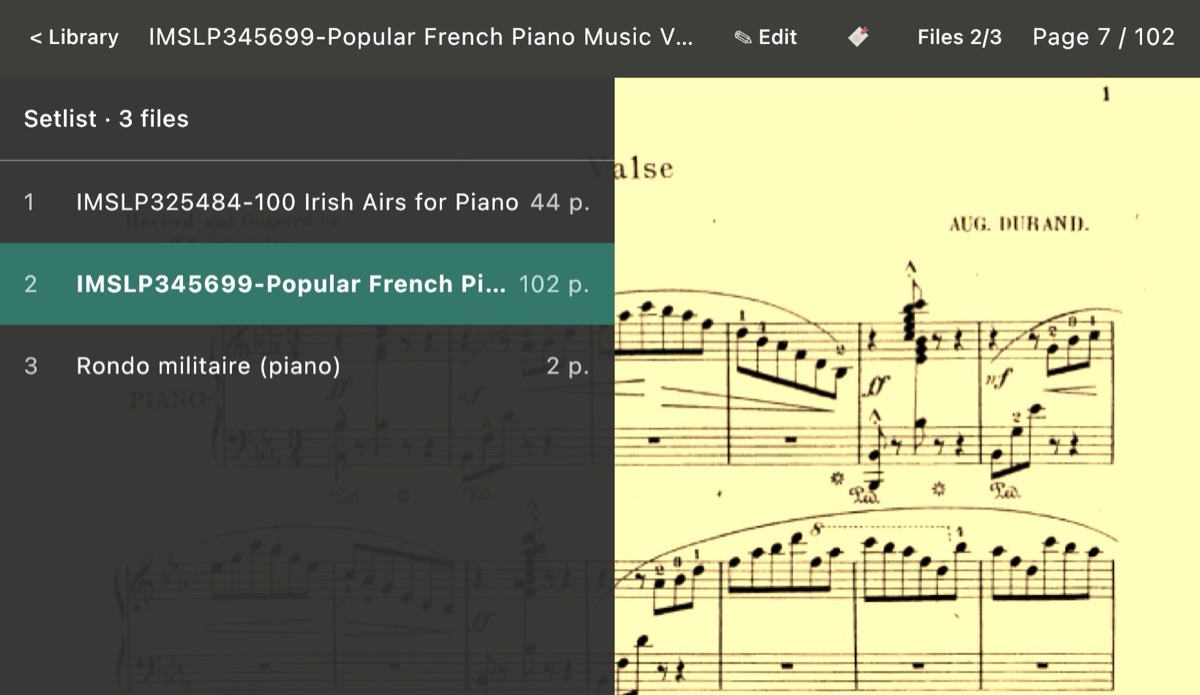
- Show the bar: tap with two fingers, or tap near the top of the screen. The bar has Library, the file's title, ✎ Edit, 🔖 bookmarks, BPM, Files (where you are in the setlist) and the page number. It hides again by itself.
- Files: opens the setlist panel. Tap a file to jump to it.
- Setlist slider: a slider along the bottom of the bar covers every page of the whole setlist, with a barline where each file starts. Drag it and let go to jump.

Book mode: two or three tablets
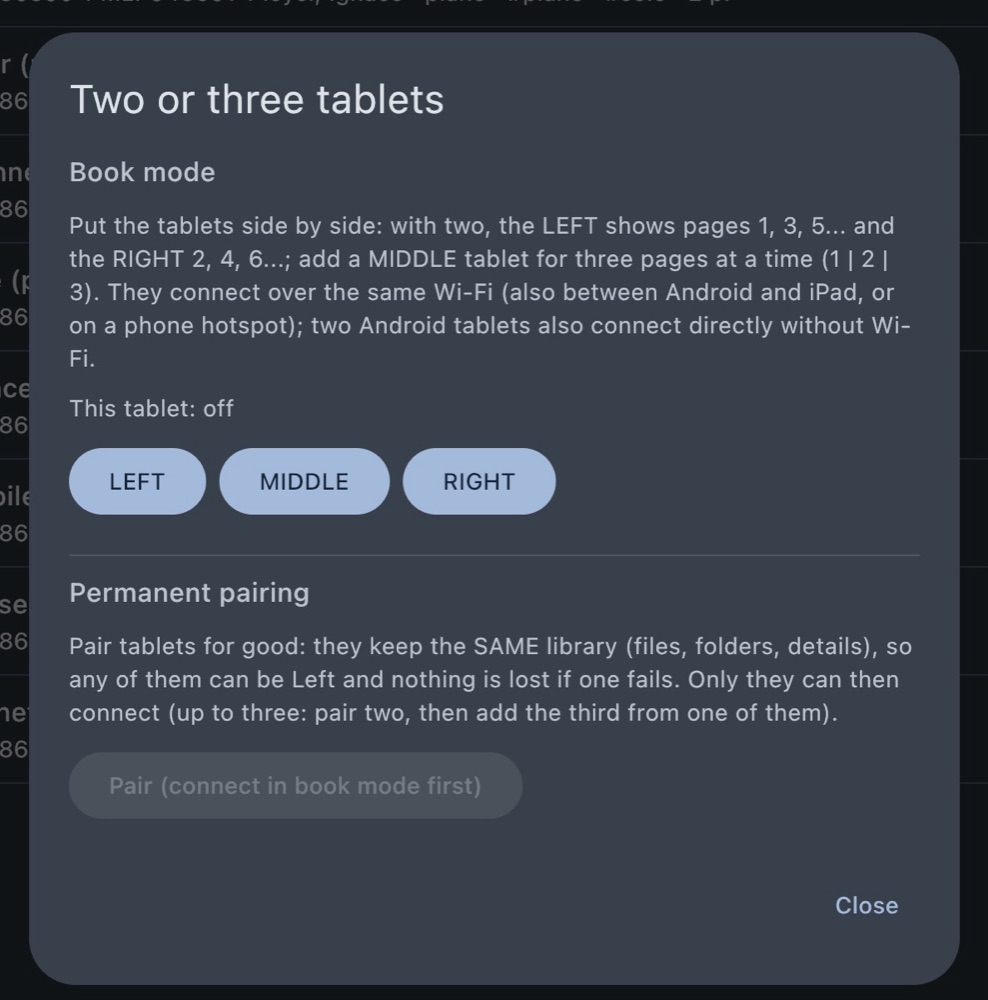
Put the tablets side by side. With two, the LEFT tablet shows pages 1, 3, 5… and the RIGHT shows 2, 4, 6…. Add a MIDDLE tablet and the three show pages 1 | 2 | 3, then 4 | 5 | 6.
- Put all the tablets on the same Wi-Fi (a phone hotspot works too). Android tablets and iPads can mix freely. Two Android tablets can also connect directly with no Wi-Fi at all.
- On each tablet tap Tablets in the library bar and choose LEFT, MIDDLE or RIGHT.
- Open a file on the left tablet. The others open the same file on their pages.
- Turn pages on any tablet and all of them follow.
Good to know
- A file with an odd number of pages will always add blank pages at the end, so that a new piece will always start on the left-most display.
- If a tablet drops out, the others carry on with single pages and show an orange SOLO badge. When the tablet comes back, the spread rebuilds itself.
- Going back to the library on any tablet closes the book for all of them. A follower can also browse the library and tap Back to book mode to rejoin.
- Edit mode is shared: open ✎ Edit on one tablet and the toolbar opens on the others, and what you draw appears on all of them live.
- On iPad, tap Allow when it asks for Local Network access. That is how it finds your other tablets.
- Book mode on its own doesn't copy your whole library. To keep the same library on all your tablets, see Syncing your tablets.
Your library
Everything about getting files in, organizing them and moving them around.
Adding files
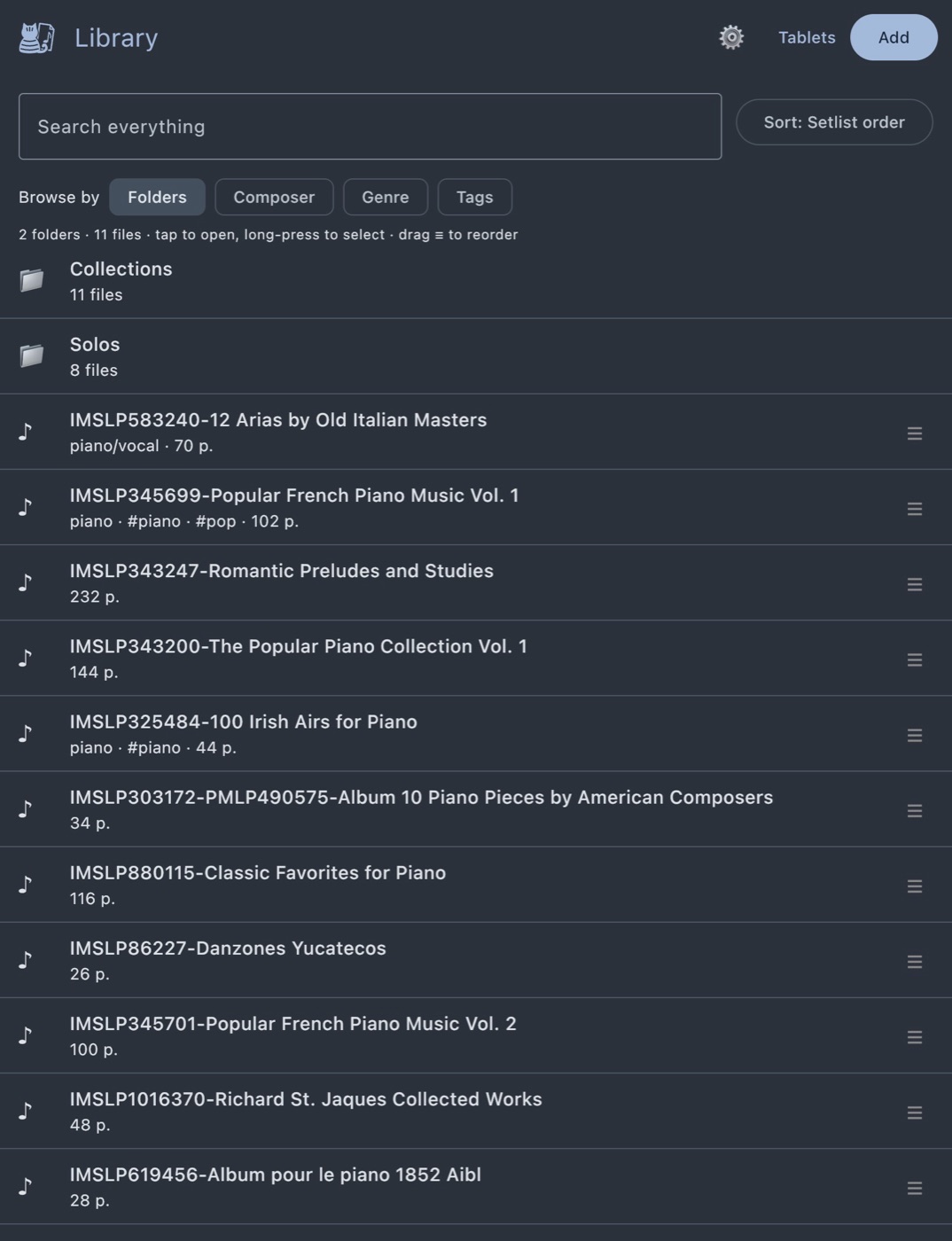
Tap Add in the library bar:
- New folder: makes a folder (a setlist) inside the one you're in.
- PDF files: pick one or more PDFs, including from Google Drive or iCloud Drive. Each one gets a File details box before it is saved. With several files, Use suggested titles for the other… saves the rest with titles from their file names.
- Folder of PDFs: imports a whole folder, with its subfolders, where your tablet offers it.
- Scan with camera: photograph paper music and it becomes a PDF. On Android this uses Google's document scanner; on iPad, Apple's. Add pages, then review and save. See Enhance a scan for cleaning poor scans.
- Import from another app: see Importing from other apps.
A file is copied into SheetShow's own storage, so it works offline on stage. The original stays where it was.
File details and tags
Every file has a title, composer, key, year, genre, arrangement and any number of tags. Long-press a file and tap Details to edit them.
- Tags are your own labels, such as Audition or Christmas. Type one and press Enter, or open the Tags ▾ menu to pick from tags you already use.
- Details follow the music. If the same piece sits in three setlists, changing its details once changes all three copies.
- Setlists in the details box shows which folders the file is in. Add to setlist ▾ puts a copy in another folder when you save.
- Several files at once: select them and tap Details. Fields you leave empty stay as they are, and tags you add are added to every selected file.
Folders and setlists
Folders work like folders on a computer, and any folder can be played as a setlist.
- Order: inside a folder, with Sort on Setlist order, drag the ≡ handle on a row to move a file up or down. That order is the playing order.
- Copy and paste: a pasted file is its own copy with its own notes, so you can mark up “Friday's concert” without touching your other versions. The PDF itself is stored only once. When you copy files that have notes, SheetShow asks whether to bring the notes along or paste them clean.
- Bookmarks belong to the setlist folder, so a file has the same bookmarks wherever you open it from in that folder.
Searching and browsing
- Search: finds files by title, composer and tags, in the current folder and everything below it.
- Sort: by setlist order, title, composer and more.
- Browse by: Folders, Composer, Genre or Tags. These views list each piece once, however many setlists it's in. You can still open a piece to play it, or copy it to paste into a setlist.
Selecting, moving and removing
Long-press a folder or file to start selecting, then tap others to add them. A row of actions appears: Copy, Cut, Move…, Details (or Rename for a folder), Export… and Remove. When exactly one file is selected and it has two or more pages, Split… appears too (see Splitting a songbook).
- Select all at the top selects everything shown. Its Folders and Files chips select only that kind.
- Move… opens a folder browser: tap folders to go in, + New folder to make one, then Move here.
- Cut then Paste here does the same as Move.
- Tap empty space to deselect.
- Remove takes a file out of the library. Its PDF is deleted only when no other copy uses it.
Importing from other apps
Add › Import from another app… reads a backup from:
- MobileSheets (.msb): files, setlists, tags, composer, genre and key, your pen and highlighter notes, and bookmarks.
- Obbligato (.zip): files with titles and tags, plus playlists as setlists. Notes and bookmarks in Obbligato backups can't be read yet.
Everything lands in a new folder (MobileSheets or Obbligato), and a report afterwards lists what was and wasn't imported. Big backups take a few minutes. Files or folders can be selected and moved wherever you like after importing.
If you pick a plain PDF here, SheetShow offers to split it into separate files. That's covered next.
Splitting a songbook
A PDF that holds many pieces, such as a songbook, a combined export from forScore or a whole collection, can be split into one file per piece.
- Pick the PDF through Add › Import from another app…, or select a file already in your library and tap Split….
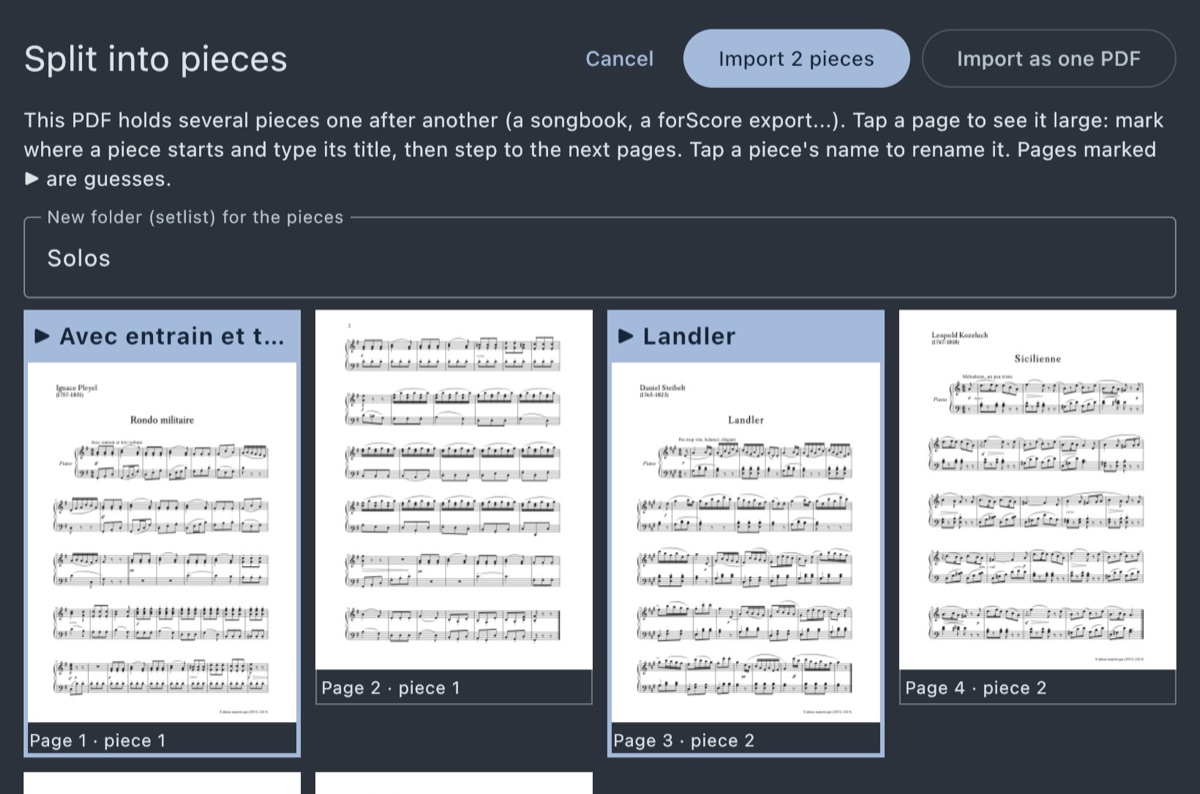
- SheetShow suggests where each piece starts, using the PDF's own bookmarks when it has them, otherwise the text on the pages. Suggested pages are marked ▶.
- Tap a page to see it large. Mark where a piece starts and type its title, then step to the next pages. Tap a piece's name to rename it. Pages like the cover, contents and index can be marked Leave this part out.
- Name the folder, then tap Import N pieces. One details box lets you set composer, genre and so on for all of them at once. Prefer to keep it whole? Import as one PDF does that.
Exporting
Select files and/or folders, then tap Export…. Choose:
- One PDF per file, or all in one PDF in the order shown (named after the folder).
- What happens to your notes: keep them as PDF annotations (pens and highlighters stay editable in other PDF apps), draw them into the pages, or leave them out.
Then choose where to save. Shortcuts, bookmarks and metronome marks are not exported. Files that aren't on this tablet yet are left out, and the report says which.
Syncing your tablets
Book mode connects tablets for playing. Syncing is the permanent version: synced tablets keep the same library, with files, folders, details, setlists, notes and your toolbar settings, and any of them can be the left tablet.
- When two tablets connect in book mode, tap Tablets › Sync with… and confirm on the other tablet. Up to three tablets can sync. To add one, use Add a tablet to sync… from a tablet already in the group.
- On a newly synced tablet you choose: the whole library (now, or quietly in the background) or only what book mode needs. Files not on a tablet yet show not on this tablet · tap to get it.
- Changes travel directly between your tablets over Wi-Fi (or Nearby on Android). Nothing goes through a server, so no account is needed.
- To leave, open Tablets › Stop syncing this tablet….
Notes on the page
Your notes live next to the PDF and never change it. Each copy of a file has its own notes, and they sync to your other tablets.
Edit mode
Open a file, show the bar and tap ✎ Edit. A toolbar appears at the top and the page shrinks to fit below it. Tap ✓ Done (or tap with two fingers) to leave.
- Tools: pen, highlighter, stamps, eraser, shortcut and metronome. Tap one to use it.
- With a tool selected, one finger draws. Turn pages with a two-finger swipe or the ◀ ▶ buttons. With no tool selected, taps and swipes turn pages as usual.
- Reorder the buttons: hold a button and drag it sideways. ☰ › Reset button order puts them back.
- ☰ menu: Edit page…, Enhance scan…, View settings and anything that doesn't fit on a narrow screen.
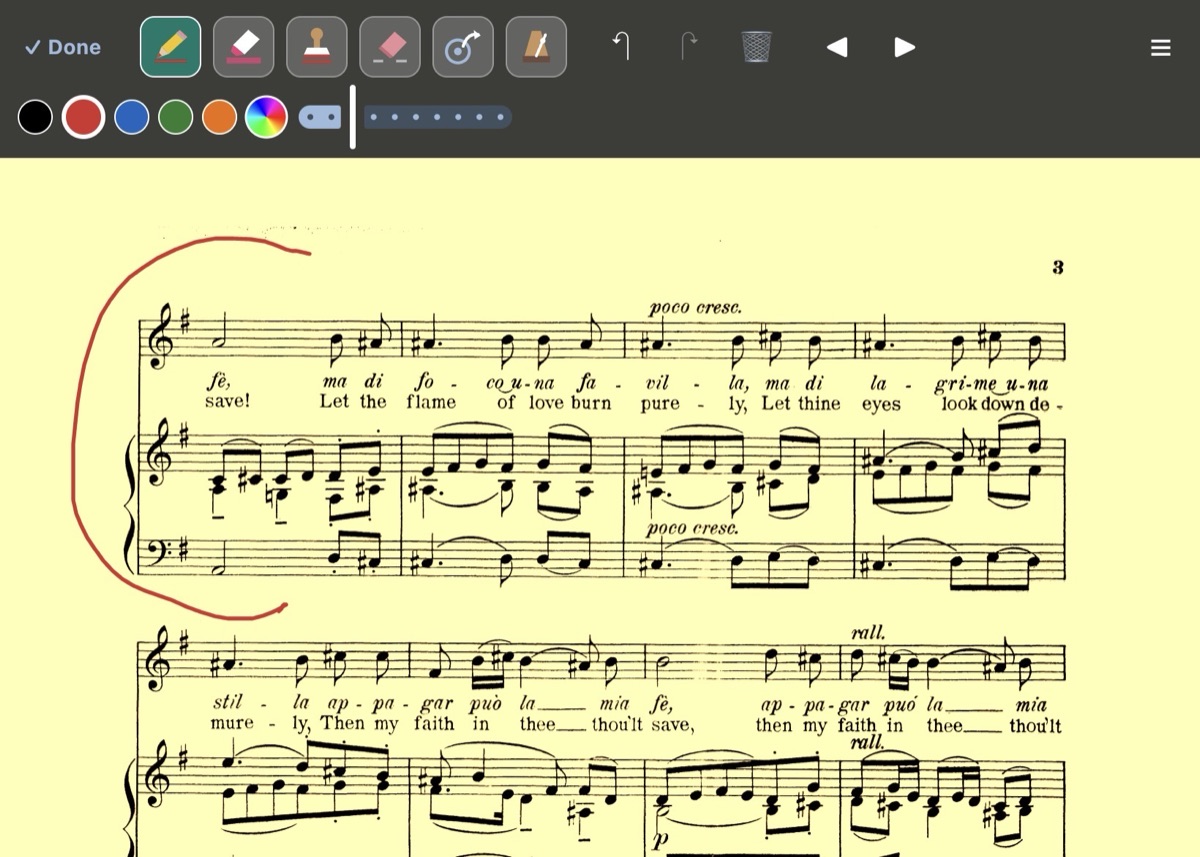
Pen, highlighter and eraser
- Pen: pick a color and drag the size slider. Five favorite colors sit in the toolbar, and the color wheel opens a palette and a color mixer. Drag a color into a favorite place to keep it.
- Highlighter: same idea, with its own colors. There is one strength. Go over it twice for a stronger mark.
- Eraser: rub over a mark and only the part you touched goes. Choose small, medium or large.
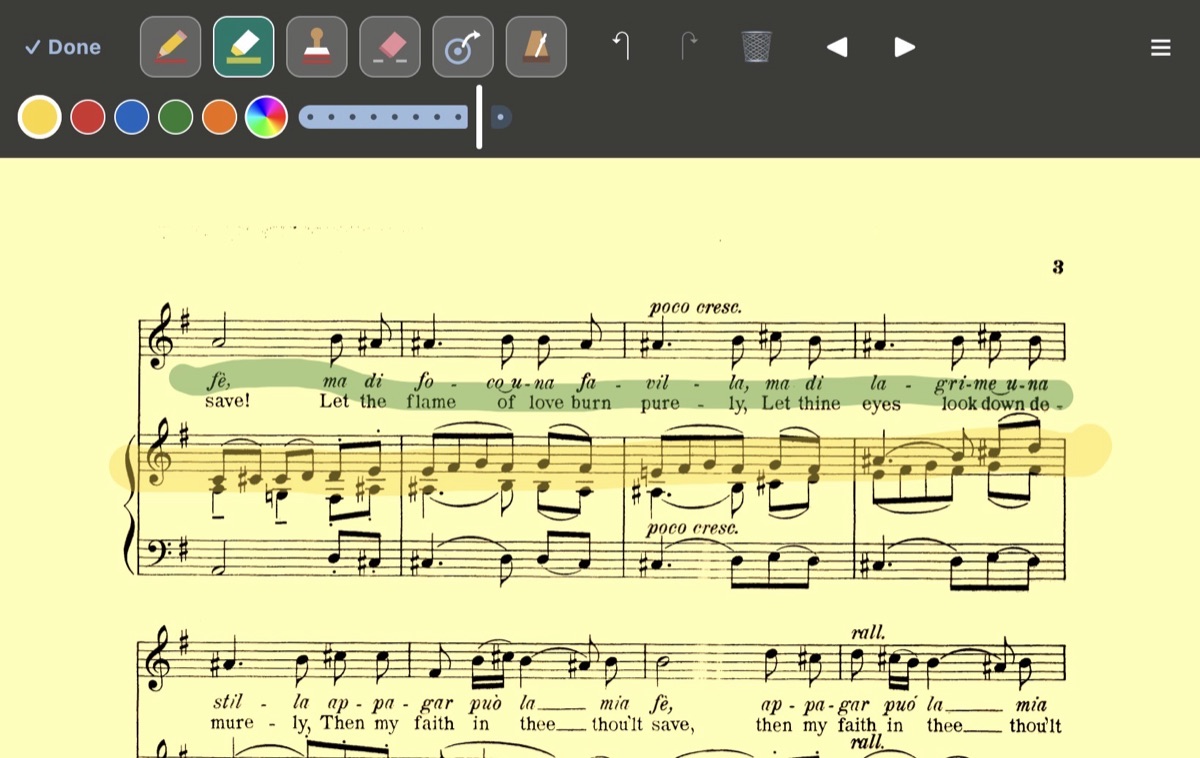
Stamps
Stamps are ready-made music symbols you tap onto the page. They're grouped as pictures (watch, stop and more), accents and bowing, dynamics (ppp to fff, sfz, fp), tempo and expression words (rit., rall., a tempo, dolce…), ornaments, clefs, accidentals, and repeats and signs (D.C., D.S., Fine, To Coda, coda, segno).
- The toolbar holds your favorites. Tap one, then tap the page to place it. The ▾ menu holds more favorites.
- More… opens the full list. Drag a stamp onto a place in your favorites (6 in the toolbar and 20 in the ▾ menu), or tap a stamp and then a place. Drag within the row to reorder.
- The slider next to More… sets the size for new stamps. Each stamp you've placed keeps its own size.
- Stamps use the pen colors.
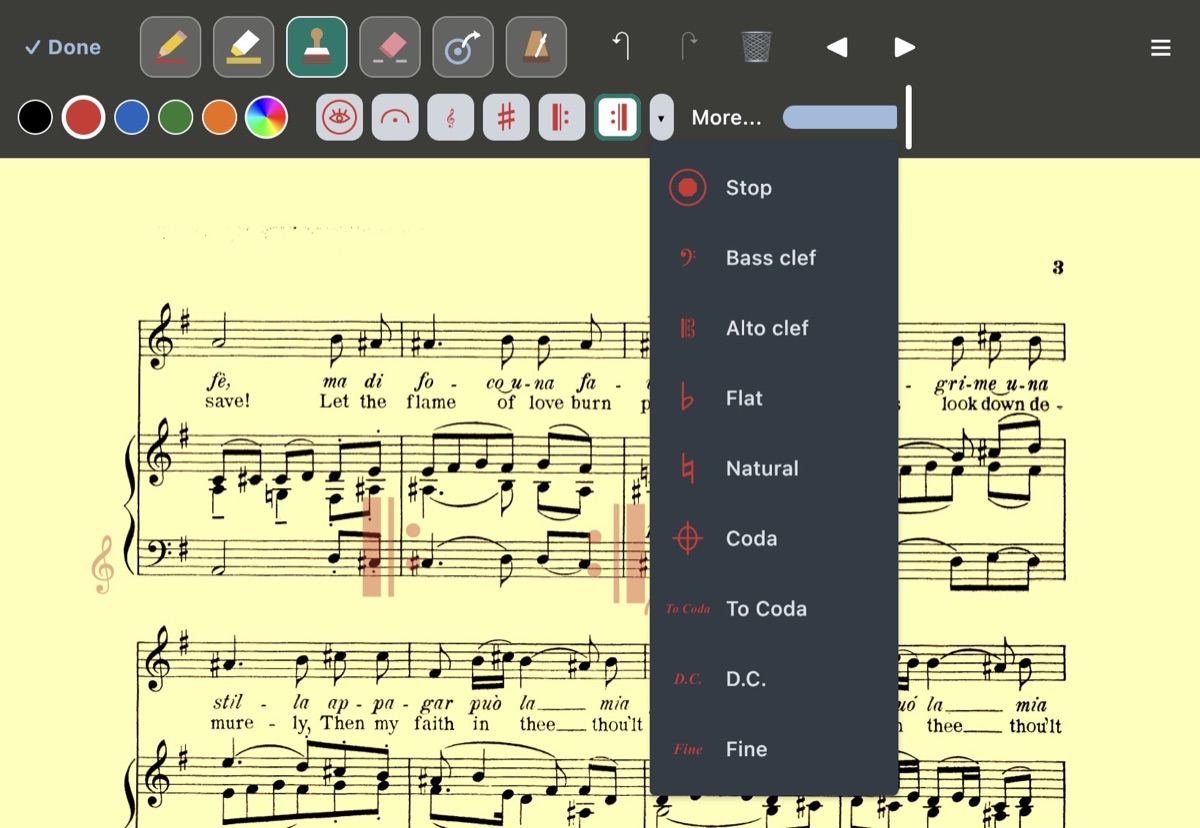
Undo, redo and clear
↶ and ↷ undo and redo your last steps. That includes pen, eraser, stamps, shortcuts and metronome marks. 🗑 clears the page's drawings and highlights after asking you to confirm. Shortcut circles and metronome marks stay, and you remove those one by one.
Bookmarks
Tap 🔖 in the bar to open the bookmark list. + Add bookmark bookmarks the page you're on, and the name is numbered for you (or type your own). Tap a bookmark to jump to it. Long-press one to rename or remove it. In a setlist the list covers all the files in that folder.
Shortcuts
A shortcut is a circle on the page that jumps somewhere else when you tap it. It's made for repeats, codas and “to the bridge” jumps.
- In edit mode, pick the shortcut tool and tap where the circle should go.
- Go to the page you want to jump to (the page turns, the Files list and other files in the same setlist all work) and tap where you want to land.
- SheetShow asks Also return? If you say yes, the destination gets a return circle that jumps back.
When you're reading, tap a circle to jump (blue ↪ goes there, green ↩ comes back). In edit mode, tap a circle to remove the shortcut. A slider in the shortcut tool sets the circle size, and View settings sets how see-through it is. In book mode, the jump moves all the tablets.
Metronome marks
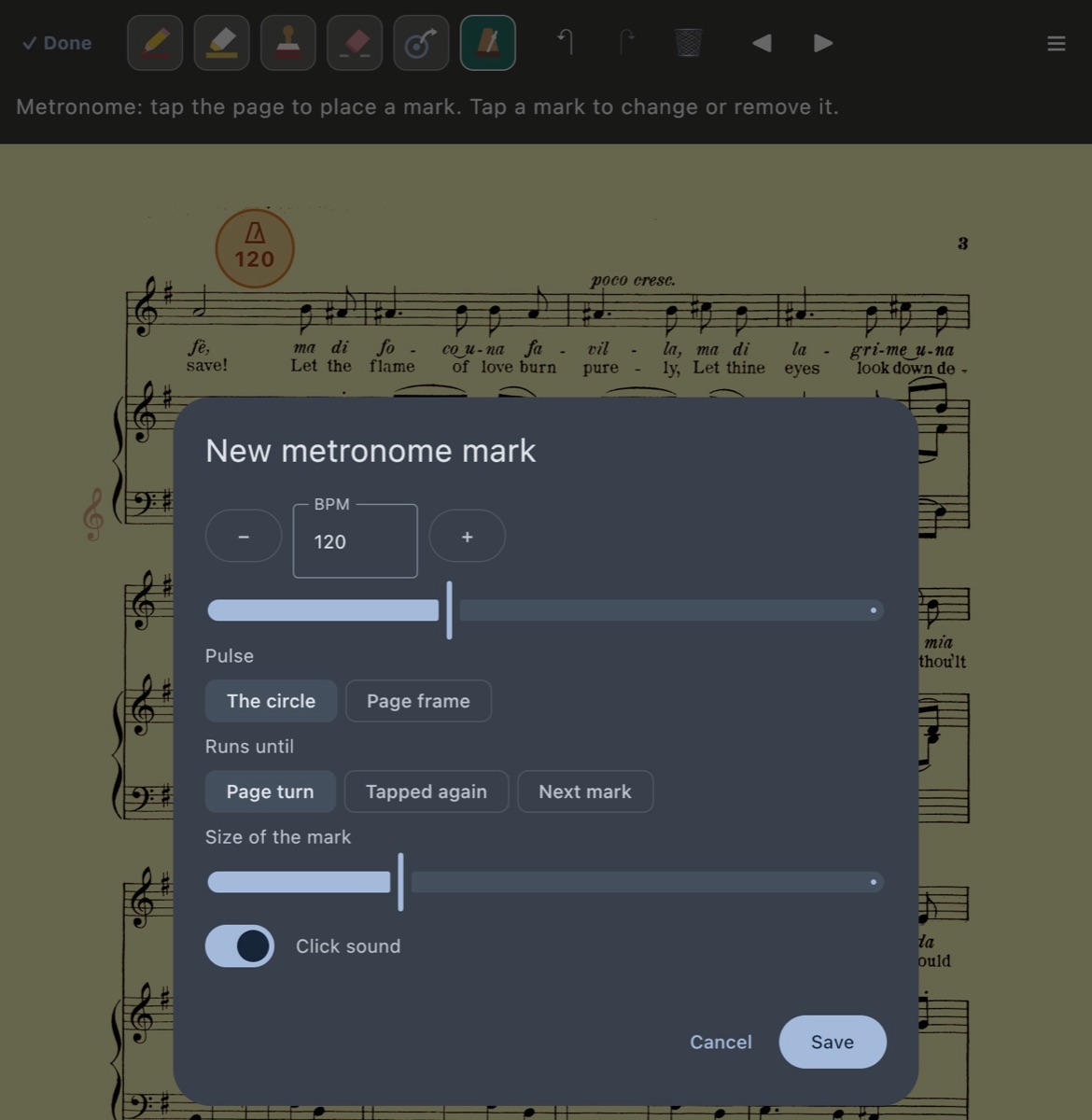
Pin a tempo to a spot on the page. In edit mode pick the metronome tool and tap the page. In the box that opens, set:
- BPM: with − / + buttons, a slider, or type it in.
- Pulse: flash the circle or the whole page frame on each beat.
- Runs until: Page turn, Tapped again or Next mark.
- Size of the mark and a Click sound switch (off by default; the volume is in App settings).
When you're reading, tap the mark to start it. A chip shows ♩ = N and a Stop button. The metronome plays only on the tablet where you started it.
BPM display
Tap BPM in the viewer bar and SheetShow listens through the microphone, estimates the tempo you're playing and shows it in a ring: orange while it's still working it out, green once it's sure.
- The first time, your tablet asks for microphone permission. You can say no. Everything else works without it.
- The sound is analyzed on the tablet as it arrives and is never recorded, saved or sent anywhere. It stops listening when you turn the display off or leave the page.
- In book mode only one tablet listens (the left, or a single tablet on its own).
- View settings has a BPM indicator size slider.
Fixing your files
Tools for crooked, tilted or faint pages. Fixes to the PDF itself apply to this copy of the file only, so copies in other setlists are left alone.
Turn, straighten and crop
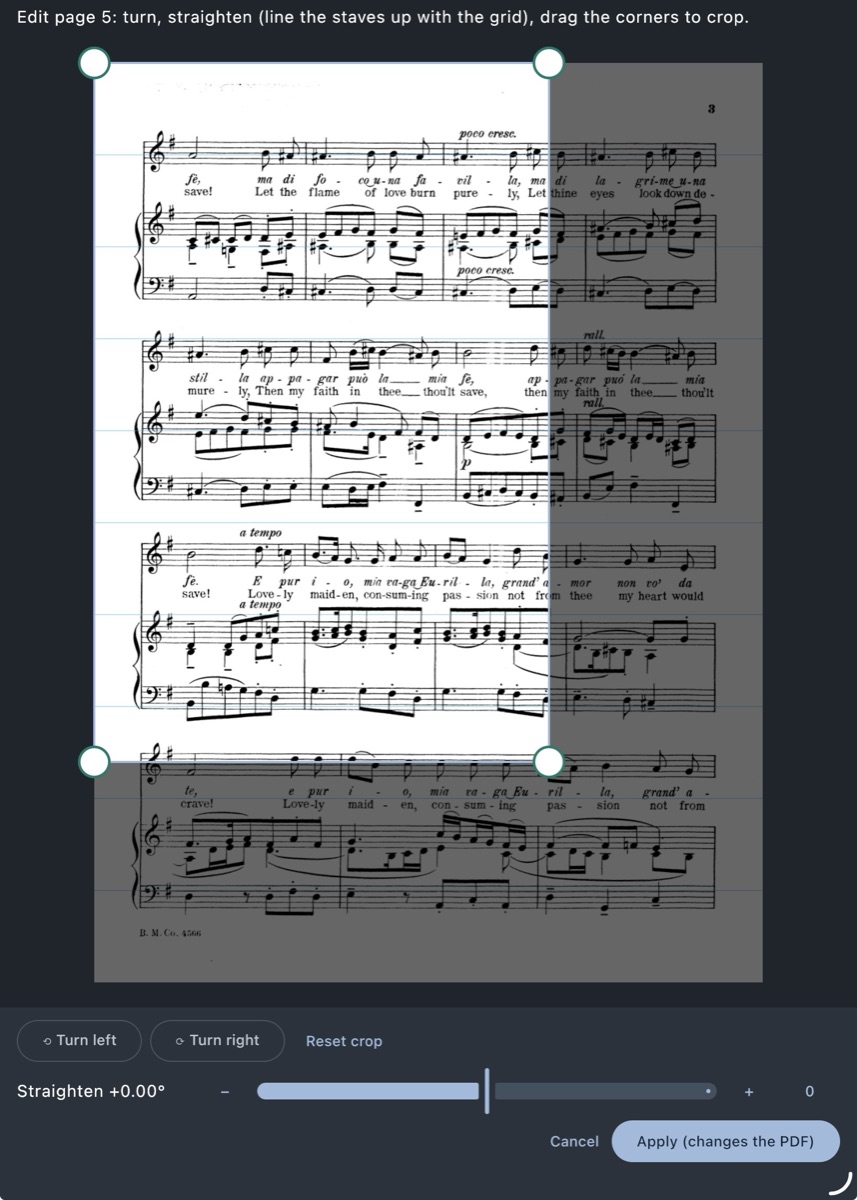
In edit mode tap ☰ › Edit page… for the page you're on.
- Turn left / Turn right: for a sideways page.
- Straighten: slide in steps of a quarter degree (or use − / +). A grid helps you line the staves up with the horizontal lines.
- Crop: drag the corner handles to trim margins. Reset crop starts again.
- Tap Apply (changes the PDF). This is permanent for this copy, so fix pages before you start writing on them.
Notes on a page you fix
If the page already has notes, Edit page… asks first:
- Flatten into the page: your notes become part of the page image and then turn, straighten and crop along with the music.
- Clear notes: removes the notes from that page first.
- Cancel: changes nothing.
Enhance a scan
For gray, shadowy or faint scans: ☰ › Enhance scan… opens a panel under the page, and you see the result as you go.
- Whiten background: turns the gray paper whiter.
- Darken notes: makes faint notation blacker.
- Black & white: drops all color.
- Auto picks sensible values. Reset turns it all off. Save keeps it.
This never changes the PDF. It's applied when the page is drawn and saved per piece of music, so every copy of it looks the same, on all your synced tablets.
Sepia
A gentle cream tint over white pages, easier on the eyes on stage. Switch it on and set the strength in ☰ › View settings. It works together with Enhance scan.
Settings, backup and help
Tap the ⚙ in the library bar for App settings:
- Backup and restore: saves your library (files, folders, notes and details, and optionally this tablet's settings) to one backup file you can keep anywhere, and restores from it.
- Metronome click volume: for this tablet, with a Test button.
- Report a bug and Request a feature: send a note to the developer. They send only what you type, an optional email so we can reply, and the app version, nothing from your tablet, and only when you tap Send.
- About: the version number and this tablet's name.
Something not covered here? Use Request a feature in the app, or write to privacy@sheetshow.dev for privacy questions.